How to Make an AI Video With Your Face in It (No Filming Required)
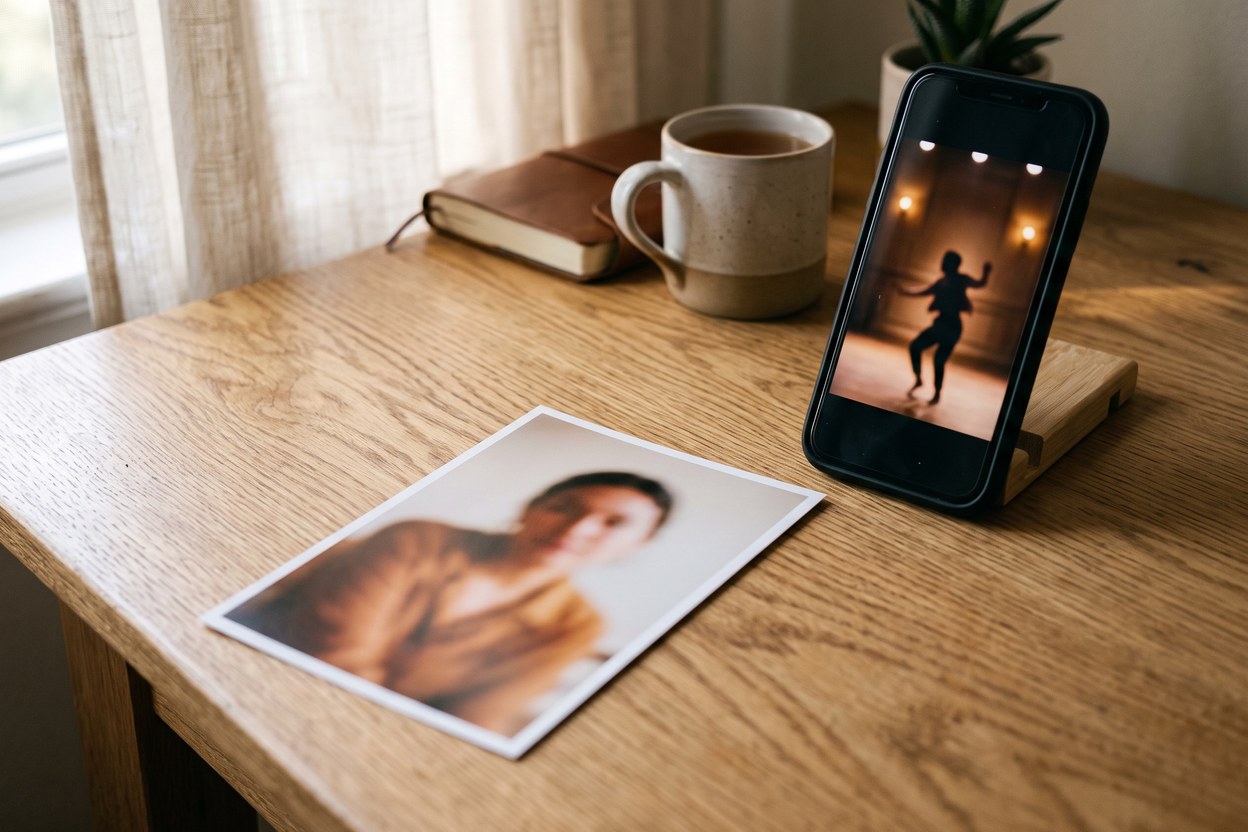
Making an AI video with your face in it means uploading a photo of yourself and a short reference clip to a motion-transfer tool, which generates a new video where you — your face, your identity — perform whatever happens in the clip. A dance, a walk, a movie scene, a meme format: the photo decides who appears, the clip decides how they move. No camera, no filming, no editing skills. This is the technique behind most of the "how is everyone in these videos?" posts filling social feeds in 2026, and it takes about five minutes.
Why motion transfer, not face swap
The first generation of "put your face in a video" tools did exactly that — cut your face out of a photo and pasted it onto someone else's head, frame by frame. The result was always slightly off: your face on a stranger's bone structure, with someone else's jawline, hair and head shape arguing with your identity from every angle.
Motion transfer works from the opposite direction. Instead of pasting your face onto the video, it rebuilds the video around your identity. The model learns what you look like from your reference photo(s), watches the reference clip to understand the motion — the choreography, the camera move, the timing — and then generates a fresh performance: a person who looks like you, doing whatever the clip does, in a scene that matches. Head shape, body, hair and lighting are generated together, so nothing looks pasted. That is why the current wave of viral clips reads as "that person is really in this video" rather than "that face is floating on this video".
How it actually works
The mechanics are simple enough to fit on an index card:
- Your photo(s) decide who. One clear, front-facing photo of yourself is enough to start. Tools that accept multiple references — Hermosso's Motion Transfer takes up to eight on its high-quality path — use the extra angles to hold your identity more steadily through turns and fast movement.
- The reference clip decides what happens. Any short video with a person in it: a trending dance, a clip you filmed of a friend (with their permission), a scene whose energy you want. Clips between 4 and 30 seconds work; the tool's output is exactly as long as the clip you feed it.
- The model combines them. It tracks the body motion and camera movement in the clip, then renders you performing it — at standard quality (480p) for a fast draft or pro (720p) for the final render.
The same engine family also powers the reverse trick — keeping the clip's original person and changing everything else (outfit, style, setting) — which our companion piece on recreating any video with AI covers in detail.
The model behind the trend: Genjutsu, without the learning curve
The motion-transfer model driving this wave is Genjutsu, built by Higgsfield — the engine behind most of the recast clips going viral right now. Hermosso's Motion Transfer runs that same Genjutsu model, but strips the workflow down to the essentials: upload your photo, upload the clip, press generate. No model menus to hunt through, no parameter panels, no guessing which of a dozen settings matter — the two choices that actually change the result (quality tier and orientation) are the only ones we ask you to make. Same engine, easier and faster path from "I want to be in that video" to a finished clip. And when you want to go further — animate a still photo, make it talk, or generate a clip from scratch — the video creation page is in the same account, one click away.
How to make one, step by step
- Pick your reference clip first. Choose the motion before the photo — the clip sets the difficulty. A person facing mostly forward, full body visible, no one crossing in front of them, gives the cleanest result.
- Choose a good photo of yourself. Sharp, well-lit, looking roughly toward the camera, no sunglasses, no heavy shadows across the face. A mediocre photo is the number one cause of "that doesn't look like me".
- Upload both to Motion Transfer. Add extra angles of yourself if you have them — it costs nothing extra and steadies the likeness.
- Pick a quality tier. Standard (480p) is the cheap pass and genuinely fine for TikTok, Reels and Shorts, which compress everything anyway. Pro (720p) is worth it for a clip you'll pin, reuse, or put in a portfolio.
- Generate, watch, iterate. If the identity drifts, swap in a sharper photo before you touch anything else. If the motion breaks, trim the clip to its cleanest five seconds.
- Label it when you post. Platforms increasingly require AI-generated content to be marked as such — and audiences reward the honesty rather than punishing it.
What it costs
Motion transfer is billed per second of the clip you upload, because the output is exactly that long. On Hermosso, standard quality (480p) costs 200 credits per second and pro (720p) costs 450 credits per second — so a 5-second clip runs 1,000 credits at standard or 2,250 at pro, and a 10-second standard clip runs 2,000. New accounts get 400 free credits, and plans start at $9/month for 5,000 credits (see pricing). The practical workflow: prototype at standard until the likeness and motion are right, then spend the pro credits on the final render.
Where it works — and where it still struggles
Being honest about the failure modes saves you credits:
- Strong: dances and trend formats, walk-and-talk clips, gym and sports movement, movie-scene recasts, meme formats. Anything with a clear single performer and a readable motion.
- Weaker: extreme close-ups where hands cross the face, clips with heavy occlusion (people or objects passing in front of the performer), very fast spin-and-whip movement, and clips where the camera work is chaotic. Each is survivable — but expect a few iterations.
- Identity drift: on longer clips the likeness can soften toward the end. More reference photos helps; so does keeping hero clips under ~10 seconds, which is conveniently the length that performs best on social anyway.
- Resolution: 480p standard output is built for feeds, not for a TV. If the video will live anywhere larger than a phone screen, render it at pro.
The one rule that matters: use your own face
This technology is genuinely fun — and it is the same family of technology behind non-consensual fakes, which is why the rule is absolute. Put yourself in videos. Put friends in videos when they've said yes and will see the result. Never put a real, identifiable person into a clip they didn't agree to — not a celebrity, not an ex, not a stranger. Beyond being the wrong thing to do, it is illegal in a growing number of jurisdictions and removed by every major platform. Our explainer on a viral AI fake shows exactly how quickly the non-consensual version goes wrong for everyone involved. The consent-based version — you, starring in everything — is the entire point of the tool, and it loses nothing by staying on the right side of that line.
Star in your first video today
One photo of you, one clip you love — Motion Transfer does the rest. New accounts get free credits, and a 5-second video costs less than a coffee.
Put yourself in a video →Frequently asked questions
What is Genjutsu and can I use it outside Higgsfield?
Genjutsu is Higgsfield's motion-transfer model — the engine behind most of the viral recast clips on social media in 2026. You can use the same model on Hermosso through Motion Transfer, which wraps it in a simpler interface: upload a photo and a clip, pick a quality tier, and generate, with transparent per-second pricing in credits.
How do I make a video with my face in it using AI?
Upload a clear photo of yourself and a short reference video clip to a motion-transfer tool such as Hermosso's Motion Transfer. The AI generates a new video in which you perform the motion from the clip — a dance, a scene, a meme format — in about five minutes, with no filming or editing required.
Is motion transfer the same as face swap?
No. Face swap pastes your face onto someone else's head in the original video, which keeps their bone structure, hair and head shape. Motion transfer regenerates the whole performer from your reference photo, so your identity, head shape and body are generated together and nothing looks pasted onto the footage.
How much does it cost to put your face in a video with AI?
On Hermosso, motion transfer costs 200 credits per second at standard quality (480p) or 450 credits per second at pro (720p) — a 5-second clip costs 1,000 to 2,250 credits. New accounts get 400 free credits, and plans start at $9 per month for 5,000 credits.
How long can the video be?
The generated video is exactly as long as the reference clip you upload. Reference clips between 3 and 30 seconds are supported; when the character keeps your photo's orientation the clip is capped at 10 seconds, and adopting the clip's orientation allows the full 30 seconds.
Why does my AI video not look like me?
The most common cause is the reference photo, not the tool. Use a sharp, well-lit, front-facing photo without sunglasses or heavy shadows, and add several extra angles if the tool supports them. Identity also softens on longer clips, so keeping hero clips under about 10 seconds helps the likeness hold.
Can I put someone else's face in a video?
Only with their clear consent. Making a video of a real, identifiable person without their agreement is illegal in a growing number of jurisdictions, violates every major platform's policies, and is the use case responsible tools refuse to support. The technology is at its best with your own face or with friends who are in on it.
Do I have to label AI-generated videos when I post them?
Increasingly, yes — TikTok, Instagram and YouTube all require or strongly push AI-content labels, and several jurisdictions mandate disclosure. Labeling does not hurt performance; the biggest AI-video creators label everything and treat it as part of the format.