How to Change the Background of a Photo with AI (2026)
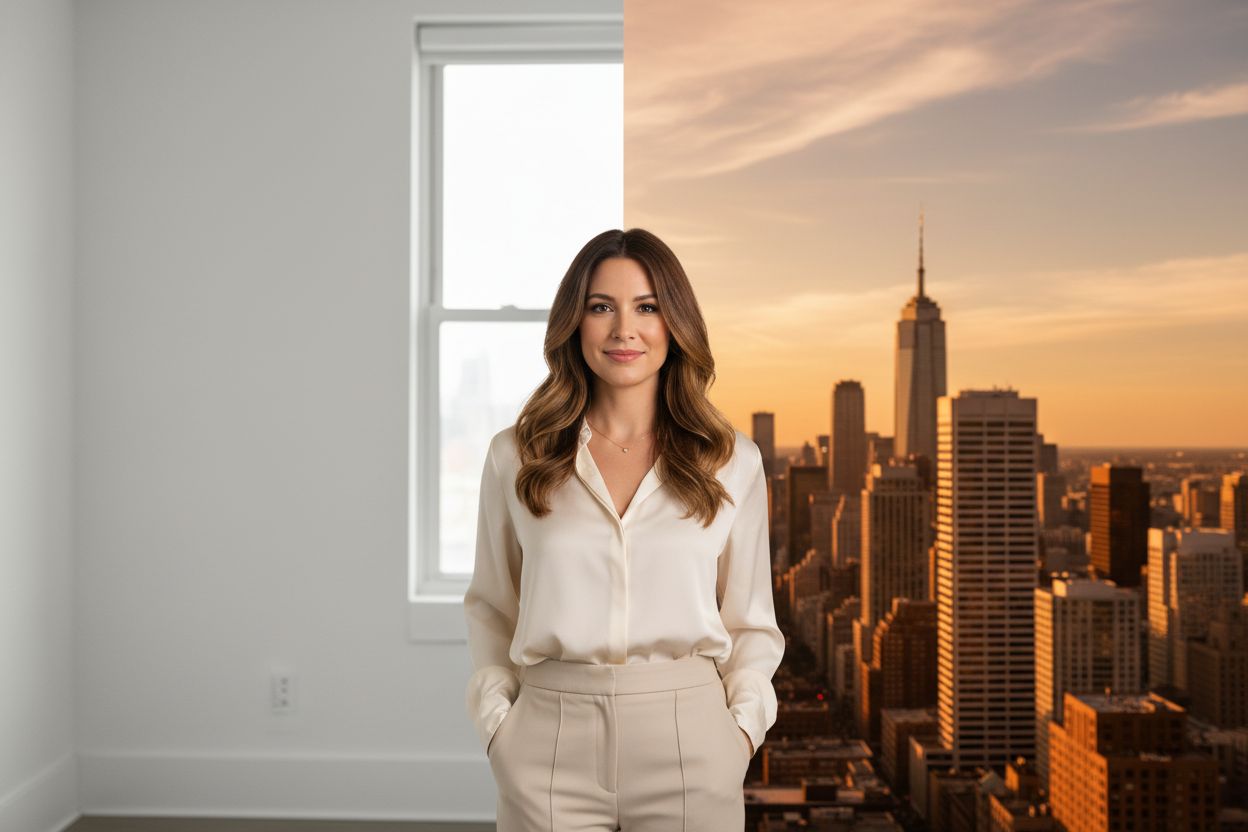
Changing the background of a photo used to mean careful selections, layer masks and a fight with flyaway hair. AI collapses it into a one-click job — but "change the background" can mean three different things, and picking the right method first saves you a round of fixes. Here's the honest breakdown.
Method 1 — Remove it: transparent PNG
The classic cutout. The Background Remover identifies the subject — a person, a product, a pet — and separates it from everything else, returning a transparent PNG in seconds for 50 credits. Modern models handle the edges that used to eat your afternoon: hair, fur, glass.
Use this when the background's next home is somewhere else — a design tool, a marketplace listing, a collage — or when you want to composite the subject onto a backdrop yourself. It's also the first step of a compliant passport photo, which Hermosso's Passport Photo maker automates entirely: background off, regulation white on, official crop applied.
Method 2 — Replace it: new scene, matched lighting
A cutout pasted onto a new backdrop has a tell: the lighting doesn't match. The subject was lit by an overcast window; the new scene says golden hour. AI Relight solves both halves at once — describe the new setting and lighting ("soft window light, warm café interior") and it re-renders the background and relights the subject to belong in it, identity preserved. For portraits and product shots this is usually the method that looks like a reshoot rather than an edit.
Method 3 — Copy a scene you like
Saw a photo with the exact backdrop you want — a Pinterest interior, a magazine beach scene? Recreate takes that reference photo and rebuilds the scene with your subject in it. It's the least manual option of all: no describing, no compositing, just "make it look like this."
Which method when
- Product listings and design work? Background Remover — you want the transparent PNG as an asset.
- A portrait that should look genuinely re-shot? Relight — background and lighting change together.
- Matching a specific reference or brand look? Recreate — point at the scene and copy it.
- Official documents? Passport Photo maker — regulation backdrop and dimensions in one step.
Tips for clean results
- Start sharp. A well-lit, in-focus original gives every method cleaner edges; run the upscaler first if the source is soft.
- Check hair at full zoom. It's the hardest edge for any model — a ten-second check beats a re-run later.
- Match the light direction. When replacing backgrounds, pick a scene whose light could plausibly hit your subject — or let Relight handle it for you.
New accounts get 400 free credits, so you can test all three methods on the same photo and keep the one that looks best.
Try it on your own photos
Upload a few selfies, and Hermosso trains a private AI model of you — then generates studio-quality photos in any style. Your first credits are free.
Create your AI photos →Frequently asked questions
How do I change the background of a photo with AI?
Three ways on Hermosso: the Background Remover returns a transparent PNG for compositing, AI Relight swaps in a new scene and relights the subject to match, and Recreate rebuilds a backdrop copied from any reference photo. Each costs 50 credits, and new accounts get 400 free.
Can AI change a photo background and keep it looking natural?
Yes — the key is lighting. A pasted cutout looks fake because the light doesn't match the new scene; AI Relight re-renders background and subject lighting together so the result looks like a reshoot rather than an edit.
How do I get a transparent PNG of a person or product?
Upload the photo to Hermosso's Background Remover — it separates the subject, including fine hair and fur edges, and returns a transparent PNG in seconds for 50 credits.
Can I put my photo on a specific background, like an office or a beach?
Yes. Describe the setting to AI Relight — or point Recreate at a photo of the exact scene you want — and your subject is composited in with matched lighting, identity preserved.