Extend an Image Beyond Its Borders: AI Outpainting Guide
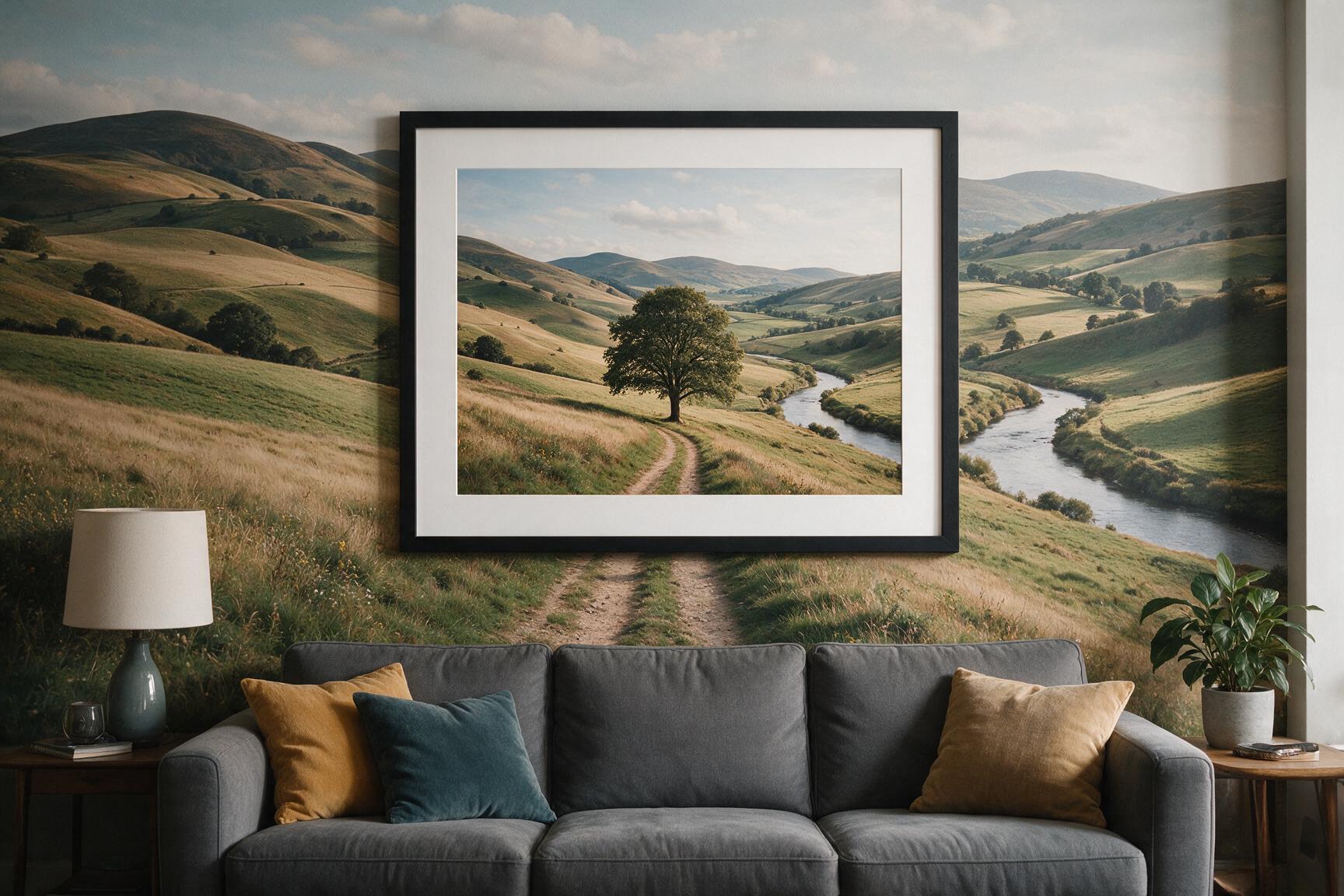
Everyone has the photo that's almost right — cropped too tight, shot vertical when you needed wide, no headroom for text. Cropping can't fix it; it only removes. AI outpainting does the opposite: it extends the photo beyond its original borders, generating new space that matches the scene. Here's how it works and when to use it.
What outpainting actually does
An outpainting model looks at what's near the edges of your photo — the horizon line, the wall texture, the lighting direction — and generates what plausibly continues beyond the frame. It's not stretching or mirroring pixels; it's painting new content consistent with your image. Hermosso's Image Extender runs FLUX Fill, a dedicated outpainting engine, at 100 credits per image.
How to extend a photo
- Upload your photo to the Image Extender.
- Pick a direction — left, right, top or bottom — or All, which zooms out 2× on every side at once.
- Optionally describe the new space — "more beach and sky," "blurred city lights." Leave it empty and the scene continues naturally.
- Generate. 100 credits per image; new accounts get 400 free.
What people use it for
- Banners and headers. Turn a standard photo into a wide hero image for a website or presentation.
- Headroom for text. Extend the top of a photo so a headline has somewhere to sit.
- Platform crops. Vertical story, square feed post, wide thumbnail — one source photo, extended to fit each.
- The zoom-out effect. A 2× extend on all sides reveals a scene around a portrait — a popular social format.
- Rescuing tight crops. The group shot that cut off someone's shoulder, the building missing its top.
- Group photos. Make room at the edges before a tight crop for a team page or a print.
Outpainting vs cropping vs generative fill
These three get confused. Cropping removes — it can never add. Generative fill (in design editors) replaces a selected area inside the frame. Outpainting adds outside the frame. They compose well: outpaint to make room, then crop to the exact ratio you need. What outpainting can't do is invent a specific real thing — it generates plausible scenery, not the actual building that was just out of frame.
How far can you push it?
The All direction zooms out 2× per run, and you can run it again on the result for 4× — though each pass generates more of the image than the last, so the original subject becomes a smaller island in generated scenery. For most jobs — a banner, headroom, a platform crop — a single run is the sweet spot: enough new space to breathe, not so much that the photo stops being yours.
Tips for invisible joins
- Extend one side at a time when you only need one side — smaller generated areas blend more cleanly.
- Use the prompt for control. If the default continuation guesses wrong, describe what should be there.
- Expect a faint seam occasionally. If you can spot the join, one pass through the 22K upscaler usually smooths it out.
- Simple backgrounds extend best. Sky, walls, sand and bokeh are near-invisible; busy patterns are harder.
- Fix lighting after, not before. Extend first, then relight the finished frame so the whole scene matches.
At 100 credits a run, the practical move is to extend once, check the join at full zoom, and only then spend another 100 credits on a second side.
Try it on your own photos
Upload a few selfies, and Hermosso trains a private AI model of you — then generates studio-quality photos in any style. Your first credits are free.
Create your AI photos →Frequently asked questions
Does the extended area match my photo?
The model generates new content consistent with your image's edges, lighting and textures — simple backgrounds like sky or walls blend almost invisibly. Occasionally a faint seam shows; a pass through the 22K upscaler usually smooths it.
How much does AI outpainting cost?
100 credits per image on Hermosso; new accounts get 400 free credits on signup, and plans start at $9/month for 5,000 credits — credits never expire.
Can I extend all sides of a photo at once?
Yes — the All direction zooms out 2× on every side in one run. You can also extend a single side (left, right, top or bottom) when you only need one.
Can I control what appears in the new area?
Yes — an optional prompt describes what fills the new space ("more beach and sky," "blurred city lights"). Leave it empty to let the scene continue naturally.